GA4 conversion tracking: a step-by-step setup guide

A GA4 conversion happens when you flag a business action as a key event inside Admin → Events, then, if you’re running ads, import that key event into Google Ads as a conversion for bidding. That’s the whole mechanism. Everything else, from planning your measurement plan to debugging a silent event, exists to make that one toggle trustworthy.
Here’s the minimal path to working GA4 conversion tracking:
- Plan the two or three business actions that actually matter (a sale, a lead form, a demo booking).
- Implement the event via Google Tag Manager or gtag.js, or rely on GA4’s automatically collected and enhanced measurement events where they already fit.
- Mark it as a key event in Admin → Events, then confirm it in DebugView and Realtime.
- Link and import to Google Ads if you’re bidding on it.
Keep your list of key events tight. GA4 has a limit on the number of key events you can mark per property, and most small businesses already have events firing but nothing flagged, which is usually the entire reason conversion reports look empty.
Pro Tip: Before touching any settings, open Admin → Events right now and check whether your important actions are even listed. Half the “GA4 isn’t tracking conversions” problems are solved in that one screen.

Key Takeaways
Accurate GA4 conversion tracking depends on planning a small set of key events, implementing them correctly, verifying them in DebugView and Realtime, then importing them into Google Ads.
| Point | Details |
|---|---|
| Limit key events deliberately | Stay well under the 30-event ceiling; three to five high-value events beat a crowded list. |
| Mark events before expecting reports | An event firing without being flagged as a key event never appears in conversion reports. |
| Verify in three layers | Check DebugView immediately, Realtime within minutes, and standard reports after 24 hours. |
| Deduplicate ecommerce carefully | Use transaction_id as a dedup key to stop double-counted purchases across tags. |
| Get managed support when it’s complex | Radkaadvertising builds the measurement plan, GTM setup, verification, and Ads import as one engagement. |
Table of Contents
- Step 1: Decide which actions deserve conversion status
- How do you capture the events you’ve planned?
- How do you mark an event as a key event in GA4?
- How do you link GA4 to Google Ads and import conversions?
- How do you verify events are actually firing?
- Where do conversions show up in GA4 reports?
- What ecommerce events should you track in GA4?
- Best practices for keeping conversion tracking accurate
- Sources
- FAQ
Step 1: Decide which actions deserve conversion status
Not every click deserves to be a conversion. This is the step marketers skip, and it’s the one that quietly ruins reporting for the next two years.
Start by mapping conversions to actual business KPIs, not to whatever’s easiest to fire. An e-commerce brand cares about purchase. A lead-gen business cares about generate_lead or a form submission with a qualified flag. A SaaS company cares about trial starts and, ideally, activation, not just sign-ups. Marking every button click, scroll depth, or video play as a key event buries the signal that actually predicts revenue.
Google’s own guidance backs this instinct: a focused set of three to five key events mapped directly to revenue or qualified leads outperforms a sprawling list where nobody can tell which numbers matter. More events isn’t more insight, it’s more noise sitting on top of the numbers you actually need.
A simple measurement plan template
Before you implement anything, write it down. A one-page measurement plan saves weeks of confused Slack threads later:
- Event name (snake_case, e.g.
generate_lead) - Trigger (form submission, thank-you page view, button click)
- Parameters to capture (value, currency, form_id, lead_source)
- Expected value (fixed value or dynamic, if revenue-attached)
- Validation method (DebugView check, who signs off)
- Owner (who updates it when the site changes)
Priority checklist by business type
- E-commerce:
purchasefirst, thenadd_to_cartandbegin_checkoutas secondary signals. - Lead generation: form submission with lead-quality parameter, plus phone-click or booking events.
- SaaS: trial start, then a downstream activation event once the trial-to-paid path is understood.
- Content/subscription: newsletter sign-up, paywall interaction, or subscription completion.
Pro Tip: Standardise names before you build anything: lowercase snake_case, verb-first (generate_lead, not LeadForm_Submitted), and version your measurement plan document like code. A dated changelog at the top saves you from guessing why an event stopped matching last quarter’s report.
Get this step right and everything downstream, implementation, marking, verification, becomes mechanical. Get it wrong and you’ll spend months debugging events that were never worth tracking in the first place.
How do you capture the events you’ve planned?
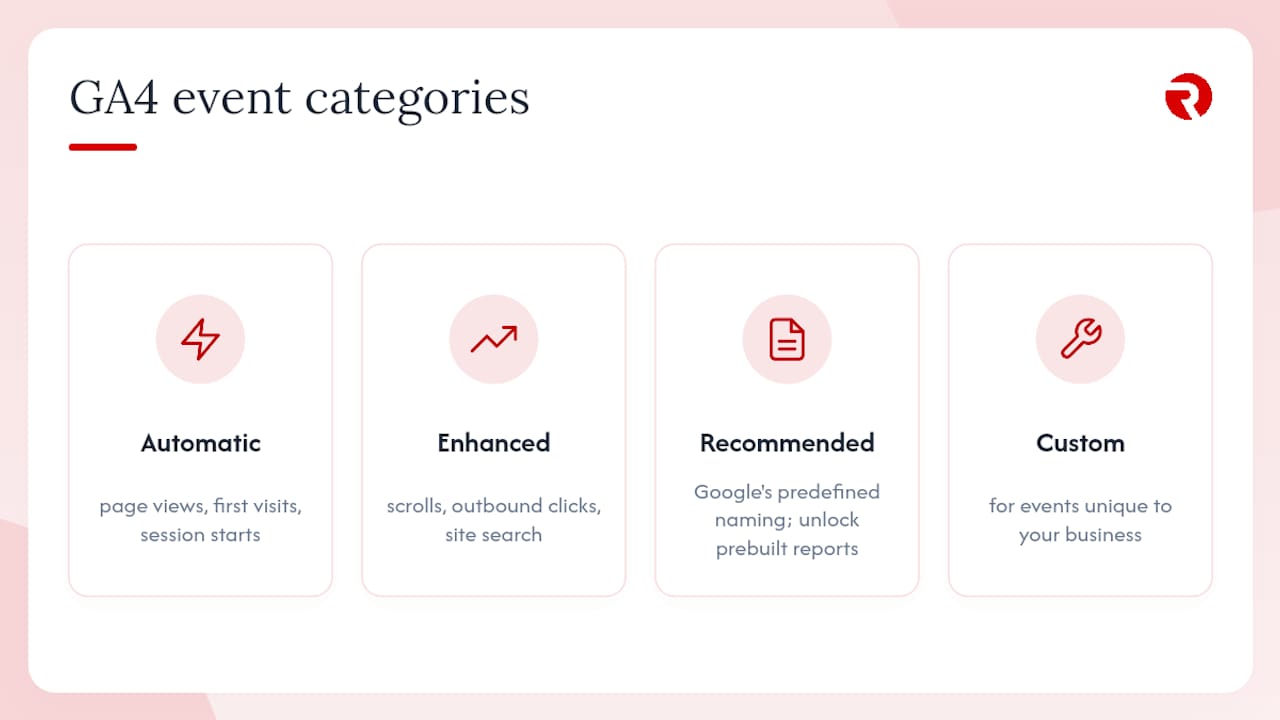
GA4 gives you four categories of events, and knowing which one applies saves you from building something Google already gives you for free.
Automatically collected events fire without any setup, page views, first visits, session starts. Enhanced measurement events cover scrolls, outbound clicks, site search, and video engagement, and you switch them on per data stream. Recommended events, like purchase or generate_lead, use Google’s predefined naming and unlock prebuilt reporting, so using them where they fit is genuinely worth the discipline. Custom events are for anything unique to your business that the other three categories don’t cover.
GTM vs gtag.js vs server-side
| Method | Best for | Trade-off |
|---|---|---|
| Google Tag Manager | Marketers managing tags without a developer on every change | Extra layer to maintain, but changes deploy without code releases |
| gtag.js (Google tag) | Developers who want events wired directly into application code | Precise control, but every change needs a code deploy |
| Server-side tagging | High-traffic sites needing more control over data and consent | More setup effort, but reduces ad-blocker loss and improves data quality |
For most marketers, Google Tag Manager wins on maintainability. You’re not waiting on a developer sprint to add a parameter.
Building the event: a quick checklist
- Create a new tag in GTM (GA4 Event tag type) or add a
gtag('event', ...)call in code. - Choose or build the trigger (click, form submission, custom dataLayer push).
- Name the event using your measurement plan’s naming convention.
- Pass parameters,
value,currency, and anitemsarray for ecommerce. - Publish the container (or deploy the code) and test immediately in GTM Preview or DebugView.
How do you mark an event as a key event in GA4?
Once an event is firing correctly, turning it into a reportable conversion takes about thirty seconds.
- Go to Admin → Events (some interfaces show this under Data Streams → Events).
- Find the event in the list, it must have fired at least once in the last 28 days to appear.
- Toggle the “Mark as key event” switch next to it.
- Confirm it now appears under Admin → Key Events with a green tick.
Marking an event does three things at once: it surfaces the action in GA4’s standard conversion reports, it feeds attribution modelling, and it makes the event available to import as a Google Ads conversion for bidding. Key events are now the primary mechanism GA4 uses for tracking the actions that matter to your business, replacing the older “conversions” terminology from Universal Analytics.
Respect the ceiling: GA4 allows a maximum of 30 key events per property. Marking every micro-interaction dilutes the ones that actually predict revenue, so treat this list like a budget, not a wishlist.
To confirm success, check three things: the event shows in Realtime within minutes, it appears in DebugView on your own test session immediately, and it’s counted in standard reports within about 24 hours of processing time.
How do you link GA4 to Google Ads and import conversions?
Once a key event is confirmed, connecting it to Google Ads is what turns your tracking into something the bidding algorithm can actually use.
- Go to Admin → Google Ads Links, select the Ads account, and confirm the linking and data-sharing settings.
- Open Admin → Conversions (or the equivalent Conversion management flow) and import the key event as a Google Ads conversion.
- Check the settings matrix before assuming full control: the conversion name is usually editable inside Google Ads, but the counting method and conversion window are typically managed from GA4’s attribution settings and may appear locked once imported.
- After import, verify the conversion shows up under Tools → Conversions in Google Ads, and watch for it to start populating with live traffic over the following days.
Linking matters more than most advertisers realise. Importing GA4 key events into Google Ads is what lets bidding algorithms optimise toward real business outcomes rather than clicks or landing-page views, which is the entire point of Smart Bidding strategies.
Pro Tip: Don’t assume the import is instant. Give it 24 to 48 hours of live traffic before judging whether the numbers look right, GA4’s processing delay and Google Ads’ own reporting lag both add friction to same-day checks.
How do you verify events are actually firing?
Verification isn’t a one-off task, it’s a three-layer habit that catches problems before they cost you a week of bad reporting.
- DebugView first. Enable debug mode (GTM Preview or a browser extension) and trigger the event yourself. This shows per-user event data immediately, before any processing delay.
- Realtime second. Check the Realtime report for the event appearing across a small batch of live sessions, this rolls up over roughly 30 minutes.
- Standard reports last. Give it up to 24 hours before checking Engagement → Events or the Key Events report, since GA4 processing and event batching introduce a genuine delay.
GTM Preview mode sits alongside DebugView and lets you inspect the exact tag that fired, the trigger that caused it, and the full data layer payload, useful for catching a missing parameter before it ever reaches GA4.
Troubleshooting checklist
- Event not firing at all: check the trigger conditions in GTM; a CSS selector change on the site often breaks a click trigger silently.
- Parameter missing: confirm the dataLayer push includes the parameter and that the GTM variable is mapped correctly.
- Event dropped or delayed: remember GA4 enforces a 16 KB payload limit and batches events, oversized or malformed payloads simply vanish.
- Time zone mismatch: GA4 reports in the property’s set time zone, which can make “missing” conversions appear when you’re just looking at the wrong day.
- Consent blockers: check your consent mode implementation; a default-denied state can suppress events entirely for EU traffic.
Fix, republish the GTM container, retest in DebugView, then move on. Never trust a fix until you’ve watched the event fire again.
Where do conversions show up in GA4 reports?
Three places, and each answers a different question. Realtime tells you whether something is firing right now. Engagement → Events shows key event counts over your selected date range. Advertising → Conversion performance report shows the imported Google Ads conversions specifically, alongside cost and campaign data.
Attribution settings sit underneath all of this and quietly shape the numbers you see. GA4 lets you choose which channels are eligible for credit (paid channels only, or paid and organic together), and the attribution model you select at the report level changes how credit gets split across the customer journey. Conversion windows and counting methods, set centrally in GA4, then flow through to whatever you’ve imported into Google Ads.
A few reconciliation habits save a lot of confusion:
- Always check time zone settings first when GA4 and Ads numbers disagree, this is the single most common cause of “missing” conversions.
- Use the Conversion performance report specifically for anything imported from GA4, not the standard Ads conversion columns.
- Accept that GA4 and Google Ads will rarely match exactly. Different attribution windows and counting logic mean small gaps are normal, not a bug.
- If your business closes sales offline, GA4 supports importing offline conversions via the Data Import feature so those sales still feed attribution and bidding.
What ecommerce events should you track in GA4?
Ecommerce tracking rewards precision. Five recommended events cover most retail journeys: view_item, add_to_cart, remove_from_cart, begin_checkout, and purchase. Each one uses GA4’s structured items array rather than flat parameters, which is what makes product-level reporting possible.
The items array carries per-product detail, item_id, item_name, price, quantity, alongside top-level parameters like currency and value. Get this structure wrong and your revenue totals may look fine while product-level breakdowns quietly fall apart.
Deduplication deserves particular attention. If you’re firing purchase from both a GTM tag and a server-side container, you risk counting every sale twice. Use a stable transaction_id as your deduplication key so GA4 (or your server-side layer) can discard the duplicate.
Checklist before launch:
- Currency is set and consistent across all events.
valuematches the actual order total, not a rounded estimate.- Every item in the array carries
item_idandprice. purchasefires exactly once per transaction, confirmed in DebugView.
Pro Tip: Test a real (or sandboxed) transaction end to end before trusting the numbers. Ecommerce tracking bugs almost always live in the items array, not the top-level event.
Best practices for keeping conversion tracking accurate
Conversion tracking degrades quietly. A site redesign changes a button’s class name, a checkout flow gets rebuilt, and suddenly a key event stops firing without anyone noticing for three weeks.
Treat your measurement plan as the single source of truth, not a document you wrote once and forgot. Version it, log every change with a date, and note who approved it. When someone asks “why did leads drop on the 14th,” the changelog should answer that faster than a debugging session.
Deduplication strategy matters beyond ecommerce too. If you’re running both client-side and server-side tagging, use event_id or transaction_id as your dedup key rather than relying on GA4 to guess.
Monitoring checklist:
- Weekly: glance at Realtime and standard reports for anomalies.
- Monthly: audit the full Key Events list against your measurement plan, retire anything no longer useful.
- Ongoing: set alerts for sudden drops or spikes, a 50% overnight change in leads is a tag problem far more often than a market shift.
- Quarterly: revisit priorities, a business pivot often means your conversions need to pivot too.
When should you hire an agency for GA4 conversion tracking?
Managed setup earns its cost when internal resources are stretched, ecommerce tracking gets complex, or discrepancies between backend sales and GA4 persist despite your own checks. A proper managed engagement should deliver a written measurement plan, a fully built GTM container, DebugView-tested QA, Google Ads linking and import, and a monthly reporting cadence.
Radkaadvertising’s approach to this covers the full build: measurement planning, implementation, a verification report, and a training handover so your team isn’t left guessing after launch.
Common mistakes we’ve fixed for clients
One recurring pattern: a client’s purchase event fired correctly for months, but nobody had ever flagged it as a key event, so Google Ads had nothing to bid against. Another: duplicate purchase events from an old GTM tag left running alongside a new server-side setup, quietly inflating revenue by close to double.
Pro Tip: After any site update, re-check your event names in DebugView the same day. A renamed button class or restructured checkout page breaks more conversion tracking than any GA4 setting ever does.
If you want help, here’s what that looks like
Getting GA4 conversion tracking right takes a measurement plan that maps to real KPIs, a technical build that doesn’t leave gaps between GTM and gtag.js, and a verification habit that catches breakages before they cost you a reporting quarter. That’s precisely the gap Radkaadvertising’s analytics work is built to close, measurement planning, GTM implementation, DebugView-backed QA, Google Ads linking, and ongoing monitoring, so conversion data stays trustworthy as your site changes.
The deliverables snapshot is straightforward: a documented measurement plan, a built and tested tracking setup, a verification report showing events firing correctly, and a handover session so your team understands what’s been built. If your GA4 numbers have never quite matched your bank statement, an analytics audit is the fastest way to find out why. Browse the case studies for examples of how this has played out for other brands, or head to the services page to scope out what a managed conversion tracking engagement would look like for your business.
Sources
- Conversions vs. key events in Google Analytics - Analytics Help
- GA4 event collection guide - Developers
- About events in Google Analytics - Analytics Help
- Beancount
FAQ
How do I set up conversion tracking in Google Analytics?
Implement the event via Google Tag Manager or gtag.js, confirm it fires in DebugView, then mark it as a key event in Admin → Events so it appears in conversion reports.
How do I track conversion rate in Google Analytics 4?
Once an event is marked as a key event, GA4 calculates conversion counts and rates automatically in the Engagement → Events and Advertising → Conversion performance reports.
When should I use conversion tracking?
Use it for any business action with measurable value, a sale, a qualified lead, a demo booking, so reporting and Google Ads bidding can optimise toward outcomes that actually matter.
How many conversions can I track in GA4?
GA4 allows a practical maximum of 30 key events per property, though most businesses only need three to five that map directly to revenue or leads.
Why are my GA4 conversions not showing?
The most common cause is an event that’s firing correctly but was never flagged as a key event in Admin → Events, a fix confirmed repeatedly in practitioner guides as the single highest-leverage check.